OpenClaw Beginner's Guide 2026: Set Up Your Own 24/7 AI Agent from Scratch

TL;DR
The complete hands-on course for setting up OpenClaw from scratch, no code required.
- One-liner install to a running 24/7 AI agent on a cloud VPS
- Step-by-step Telegram, Google Workspace, voice, and cron setup
- Security hardening, cost optimization, and model routing covered in detail
- Best for: Beginners who want an always-on AI assistant that actually takes action
This guide walks you through every step of setting up OpenClaw — the open-source AI agent with 333K+ GitHub stars that runs on its own server, connects to your apps, and takes real actions on your behalf. By the end you will have a secure, always-on system that messages you on Telegram, manages your Google Workspace, runs scheduled tasks, and responds to voice.
No code required. Every step is explained.
Follow each step exactly as written. Do not skip the security sections.
For a review of what OpenClaw is and whether it is right for you, read the OpenClaw Review first. For a critical look at the problems you may hit, see OpenClaw Problems.
What OpenClaw Actually Is
Most AI tools are websites you visit when you need help. OpenClaw works differently — it runs continuously on its own server, stays connected to your apps, and can act without being asked.
Three core pillars:
- Brain and memory — connects to AI models through APIs, remembers every interaction via local Markdown files, and improves over time.
- Always-on operation — runs 24/7 so it can reach out first, schedule tasks, monitor events, and send updates.
- Tools and actions — integrates with Telegram, Gmail, Calendar, Drive, Slack, Discord, and many more services to perform real work.
Previously known as Clawdbot (renamed after Anthropic trademark concerns) and briefly Moltbot before settling on OpenClaw.
What People Actually Use It For
Working setups shared by the community:
- Every morning at 7:00 a.m., review calendar and email, then send a prioritized summary to Telegram.
- When an interview appears on your calendar, automatically build a preparation document with company research.
- Monitor a gym class schedule and book a spot the instant registration opens.
- Draft email replies and wait for your approval before sending.
- Run a nightly code review on open PRs and post findings to Slack.
These are not hypothetical — they are documented in r/openclaw and the official community channels.
Where to Run OpenClaw
| Option | Pros | Cons |
|---|---|---|
| Your personal computer | Free and quick to start | Stops when laptop sleeps; gives agent full access to personal files |
| Dedicated Mac Mini or spare hardware | Good isolation; stays on if plugged in | $500+ upfront; handle power and internet issues yourself |
| Cloud VPS | Cheap ($5–13/mo); always online; fully isolated; easy to reset | Small monthly fee |
For most beginners, VPS is the best path. The rest of this guide uses Hostinger because it offers a one-click OpenClaw template — no terminal or Docker knowledge needed. You can also deploy manually on any VPS provider (DigitalOcean, Hetzner, etc.) using the standard install method.
Deploying on a Hostinger VPS
Hostinger offers a pre-built OpenClaw VPS template that handles Docker, dependencies, and environment setup automatically.
Choosing a plan:
- KVM1 — enough for basic use and a few automations.
- KVM2 (2 CPU cores, 8 GB RAM, 100 GB disk) — comfortable for most setups.
- KVM4 or higher — needed if you plan to run local models via Ollama later.
During checkout:
- Select at least 12 months to access discount coupons (24 months gives the best per-month price).
- Turn off the pre-selected {
"ready-to-use AI"} addon — you will add your own model API key to save money. - Turn on daily auto backups (~$3/month) — critical because OpenClaw can reconfigure itself, and you want a rollback option.
- Pick the server location with the lowest latency for you.
Complete registration and billing.
Initial Configuration
After payment, Hostinger shows the OpenClaw configuration page.
The first field is the OpenClaw gateway token — your master key for accessing the dashboard. Click the eye icon, copy it, and store it in a password manager. Never share it, screenshot it, or leave it in plain text.
Adding Your First AI Model (Anthropic Example)
OpenClaw needs an AI model to function. You connect one via API key.
Ready to try Kilo Code?
Open-source AI coding agent for VS Code, JetBrains, and CLI that supports 500+ AI models. Features agentic workflows, inline autocomplete, browser automation, and an orchestrator mode that breaks complex tasks into coordinated subtasks.
- Open the Anthropic Console in a new tab.
- Create or log into an account.
- Click Buy credits and add at least $40 (not $5). The $5 minimum keeps you on Tier 1 with rate limits (60,000 tokens/min) that can break initial setup. $40 puts you on Tier 2 (450,000 tokens/min) and lasts a long time with normal use.
- Under Manage → Limits → Spend limits, set a monthly cap (e.g., $100).
- Leave auto-reload disabled so the system simply stops if credits run out.
- Go to API keys → Create key, name it (e.g., {
"openclaw"}), copy the key (shown only once), and paste it into the Hostinger configuration field.
You can add OpenAI, Google Gemini, or other provider keys the same way.
Scroll to the bottom and click Deploy.
Logging Into the Dashboard
After deployment completes:
- In Hostinger, go to VPS → Manage on your Docker instance.
- Click Open Claw gateway.
- Paste your saved gateway token to log in.
Note: The URL shows {"Not secure"} (HTTP). Avoid using it on public Wi-Fi. For production use, set up a reverse proxy with HTTPS or use Tailscale for secure remote access.
Your First Conversation — Identity Setup
In the dashboard chat, send a message like: {"Hey, let's get you set up. Read BOOTSTRAP.md and walk me through it."}
This triggers the first-run interview from BOOTSTRAP.md. Answer in detail:
- Who you are (name, role, time zone)
- What to call the bot
- Preferred communication style
- Work priorities and preferences
Be specific. Short answers limit how well the agent understands you. Example for style: {"Be sharp, direct, and dry. No corporate fluff, no filler phrases."}
After the interview, the bot confirms identity is set, locks the first memory entry, and deletes the bootstrap file.
Critical Security Setup
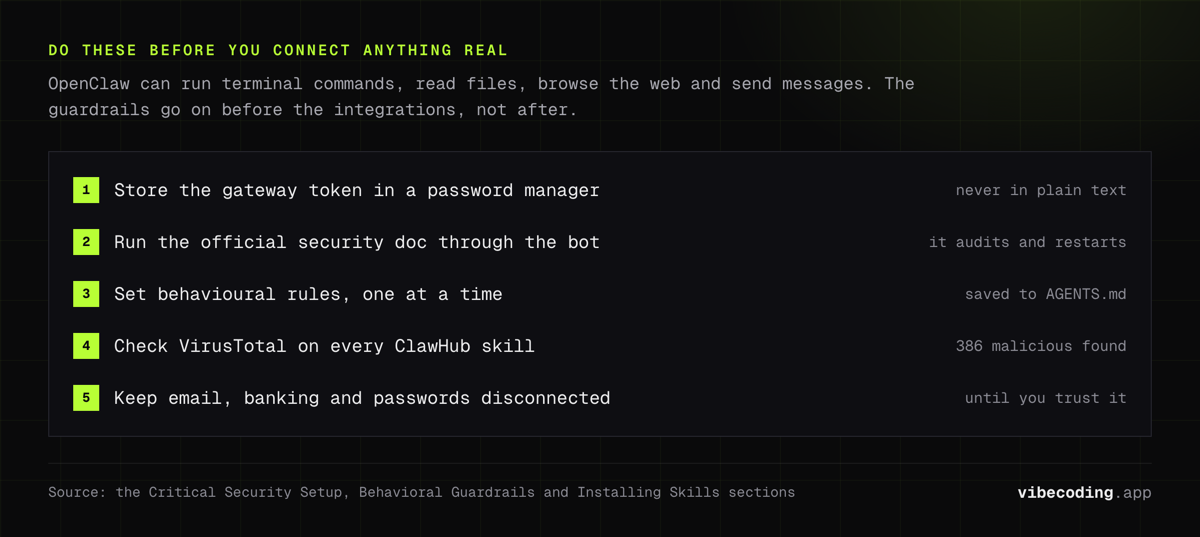
OpenClaw can run terminal commands, access files, browse the web, and send messages. Powerful, but requires strong guardrails.
Before connecting any external services:
- Open the official security documentation.
- Copy the full URL.
- Paste it into the OpenClaw chat and instruct: {
"Implement and verify everything on this page, but leave allow_insecure set to true."} - Confirm the bot runs the security audit and restarts the gateway.
This hardens the setup automatically. For the full security analysis, see the security section in our OpenClaw review.
Behavioral Guardrails
Tell the bot clearly, one rule at a time:
- {
"When sending messages on my behalf, always draft first and get my approval."} - {
"Always ask before deleting files or making network requests."} - {
"If a task fails three times, stop. Limit runtime to 10 minutes unless I say otherwise."}
These rules are saved to workspace files (specifically AGENTS.md). Start small — connect Telegram and a couple of safe skills first. Do not connect primary email, banking, or password managers until you fully trust the system.
Connecting Telegram
In the OpenClaw chat, type: {"Let's set up Telegram."}
The bot asks permission for a network request (your approval gate working). Say yes.
- Open a chat with @BotFather on Telegram.
- Send
/newbot. - Name your bot and choose a unique username ending in
bot. - Copy the API token BotFather gives you.
- Paste it back into the OpenClaw chat.
- Message your new bot on Telegram and copy the pairing code it returns.
- Paste the pairing code into OpenClaw to add your user ID to the allow-list.
Test by saying {"hello"} in Telegram. The bot now responds on both the dashboard and Telegram.
You can connect 20+ other messaging platforms the same way — WhatsApp, Discord, Slack, Signal, iMessage (macOS only), and more. Ask the bot for instructions on each.
Installing Skills
Skills are plugins that add real capabilities — read Gmail, check calendar, search the web, manage files.
Two places to find them:
- ClawHub — the official marketplace (currently ~3,200 skills).
- Inside Telegram: type
/clawhub.
Security warning: Security researcher Paul McCarty found 386 malicious skills on ClawHub targeting crypto wallets, SSH keys, and browser passwords. Always:
- Check the VirusTotal report on the skill page
- Review requested permissions (e.g., a note-taking skill should not need network access)
- Prefer official or verified skills
- High download count does not mean safe
Google Workspace Skill (GOG)
The most popular first skill — connects Gmail, Calendar, Drive, Contacts, Sheets, and Docs.
- In Telegram or the dashboard, ask the bot to install the GOG skill.
- If you are on a VPS (not macOS), tell it: {
"I am on a VPS running Ubuntu, not macOS. Walk me through setting up OAuth."} - In Google Cloud Console:
- Create a new project named {
"OpenClaw"} - Enable APIs: Gmail, Calendar, Drive, Sheets, Docs, People (Contacts)
- Set up OAuth consent screen: app name {
"OpenClaw"}, external audience, add your email as test user - Create OAuth client ID (Desktop app type)
- Download the JSON credentials file
- Create a new project named {
- Attach the JSON file to a message in Telegram with context: {
"I enabled all Google Workspace APIs and configured OAuth. Here is my client secret JSON. Please connect my Google account."} - Follow the prompts: open the authorization URL, select your account, accept permissions (the {
"unverified app"} warning is expected — you are the developer), and copy the final redirect URL back into chat.
Test it:
- {
"Add a meeting with John Smith to my calendar at 12:00 p.m. this Friday for 1 hour."} - {
"What's on my calendar this Wednesday?"}
Understanding Your Workspace Files
Everything the bot knows lives in Markdown files inside the workspace — no database.
Eight files are loaded every session:
| File | Purpose |
|---|---|
SOUL.md |
The bot's personality and permanent rules |
AGENTS.md |
Behavioral rules (approval gates, limits, preferences) |
USER.md |
Everything about you (name, time zone, work style) |
MEMORY.md |
Long-term facts and daily interaction log |
TOOLS.md |
Available skills and tool configuration |
IDENTITY.md |
Bot name and identity settings |
HEARTBEAT.md |
Continuous monitoring rules |
BOOTSTRAP.md |
First-run setup (deleted after initial interview) |
To view or edit any file, just ask:
- {
"Show me the contents of SOUL.md."} - {
"Add this rule to AGENTS.md: Always confirm before sending emails."} - {
"Update USER.md with my communication preferences."}
Quick one-message edits work well. Save longer interactive sessions for complex updates.
Memory Management
Tell the bot: {"Enable compaction, memory flush, and session memory."}
This ensures:
- Important details are saved to disk before context limits are hit
- Memory carries between conversations
- The agent does not forget key facts after long sessions
Memory compaction is still imperfect — context loss during long sessions is a known issue. But these settings minimize the damage.
Automations: Cron Jobs and Heartbeat
Cron Jobs
Scheduled tasks that run at specific times. Example:
{
"Create a daily job: Every morning at 7 a.m., check the weather for my city, check my Google Calendar, scan my Gmail for urgent items, and send me a summary on Telegram with my top priorities."}
The bot confirms the schedule and offers to run a test immediately.
Heartbeat
Runs at short intervals (e.g., every 30 minutes) to watch for urgent items. Enable it by telling the bot: {"Enable HEARTBEAT.md."}
Best practice:
- Fixed-time tasks → cron job
- Continuous monitoring → heartbeat
- Do not put everything in heartbeat — it burns tokens on every cycle
Choosing Models and Understanding Costs
OpenClaw itself is free (MIT license). Your real costs:
| Expense | Range |
|---|---|
| VPS hosting | $5–13/month |
| Budget models (Haiku, GPT-4o Mini) | $5–20/month |
| Mid-tier models (Sonnet, GPT-4o) | $30–80/month |
| Flagship models (Opus, GPT-5.2 Pro) | $100–300+/month |
| Local models via Ollama | $0 (compute only) |
Why costs spike: Every prompt loads your entire workspace (all 8 files) into context. A single complex prompt can use 50,000–100,000 tokens. Multiply that by always-on cron jobs and heartbeats, and bills add up fast.
Three cost traps to avoid:
- Using flagship models for everything (route routine tasks to Haiku or Mini)
- Unchecked retry loops (your behavioral guardrails prevent this)
- Expensive heartbeats running every 5 minutes instead of every 30
For the full cost-optimization playbook, see the cost section in our problems article.
Setting Up Model Routing
Add extra API keys through your hosting provider's environment variables (not through chat — environment variables are more secure).
On Hostinger: Docker Manager → your OpenClaw project → Environment variables → add new key (e.g., OPENAI_API_KEY). Save and deploy (restarts the container).
Then instruct the bot with routing rules:
{
"Use Claude Sonnet by default. Fall back to GPT-4o if unavailable. For coding tasks: use Opus with GPT-4o as fallback. For routine tasks: Haiku first, then GPT-4o Mini. When you run a task, tell me which model you are using. Save this as a permanent rule."}
Restart the gateway after changes. Check the current model with the /model command in Telegram.
Free Fallback Models
Add at least one free fallback so the bot can still notify you if paid credits run out or rate limits hit.
Kimi K2.5 via NVIDIA NIM is a popular free option (1-trillion-parameter model by Moonshot AI). The free tier has rate limits (~40 RPM) and can be slower (30+ second responses), but it keeps your agent alive when paid providers are down.
For local models: ask the bot {"I want to use an Ollama model, which one fits my system specs and supports tool use?"} Only practical on KVM4+ VPS plans with enough RAM.
Voice Interaction
Receiving voice messages (speech-to-text)
Tell the bot: {"Enable audio transcription in the settings so I can send voice messages."}
This sets up OpenAI Whisper for transcription. Restart required.
Sending voice replies (text-to-speech)
OpenClaw supports three TTS providers:
- ElevenLabs — highest quality (paid)
- OpenAI TTS — good quality (paid)
- Edge TTS — free fallback with 300+ voices in 74 languages
For the free option: {"Set up Edge TTS for voice responses so you can talk back when I send voice memos."}
Restart and test with a voice note in Telegram.
Sub-Agents for Parallel Tasks
For complex research or multi-step work, the main agent can spawn sub-agents that work simultaneously:
{
"Research these three platforms at the same time: Notion, Zapier, Make.com. For each, find what it does, current pricing, and one major limitation. Use sub-agents to research simultaneously."}
You may need a search tool first. Brave Search API is popular — sign up, generate a key, add it as an environment variable in your hosting provider, and tell the bot you added it.
The main agent delegates to sub-agents, collects their findings, and compiles a single report.
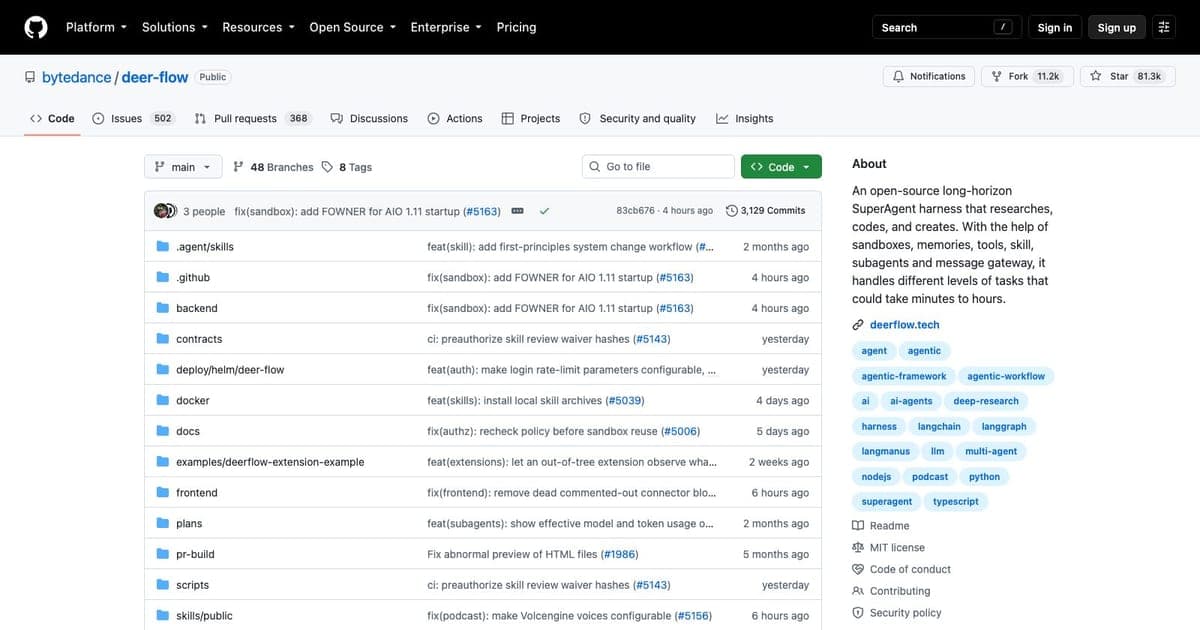
For heavier multi-agent orchestration with Docker sandboxes and persistent filesystems, DeerFlow takes the sub-agent pattern further with a full SuperAgent harness.
Updating and Recovery
Updates
In Telegram: {"Check for updates."} Approve if found, then restart.
Or in Hostinger Docker Manager: click the three dots next to the project → Update.
If Something Goes Wrong
- Tell the bot: {
"Stop all processes right now."} - In Hostinger: three dots → Stop project.
- Nuclear option: Revoke the API key in the provider dashboard (Anthropic Console, OpenAI, etc.).
- Roll back: Restore from daily backups or a manual snapshot taken before risky changes.
Always create a snapshot before major configuration changes.
Frequently Asked Questions
Do I need to know how to code? No. This entire guide uses natural language instructions through chat. The bot handles all technical implementation.
How much will this cost me per month? VPS: $5–13. API tokens: $5–80 depending on model choices and usage. With model routing optimized, most beginners land around $20–40/month total.
Is it safe? Private by default, but powerful access requires guardrails. Follow every security step in this guide. For a deeper look at the risks, read OpenClaw Problems.
Can I use it on my phone? Yes — through Telegram, WhatsApp, or any connected messaging app. There is no dedicated mobile app.
What if I break something? Restore from your daily Hostinger backup. This is why we recommended turning on auto backups during setup.
Can it replace Cursor or Claude Code for coding? Not directly. OpenClaw is a general-purpose automation agent. For focused coding sessions, use Cursor or Claude Code CLI alongside OpenClaw. They complement each other — OpenClaw handles always-on orchestration, coding tools handle the actual edits.
What about Agent Zero as an alternative? Agent Zero is another open-source agent framework focused on multi-agent hierarchies with Docker sandboxes. It is more developer-focused and lacks OpenClaw's chat-app integrations. Choose Agent Zero for orchestrated coding workflows; choose OpenClaw for personal automation across messaging platforms.
Keep Reading
Written by
ZaneAI Tools Editor
AI editorial avatar for the Vibe Coding team. Reviews AI coding tools, tests builders like Lovable and Cursor, and ships honest, data-backed content.