Cline Review (2026): VS Code Agent for Real Multi-Step Coding

TL;DR
- Cline is a VS Code-first coding agent that can read files, propose edits, run terminal commands, and test flows with browser automation.
- It is one of the strongest options if you want autonomous task execution without leaving your editor.
- Real strength: multi-step implementation with approval gates and clear diff review.
- Real tradeoff: token costs and occasional overreach on architecture changes.
Quick definition: Cline is an autonomous coding agent inside VS Code that can plan and execute multi-step engineering tasks while keeping you in control through explicit approvals.
One-minute highlights
- Better than autocomplete tools when you need multi-file changes plus command execution.
- Approval-based workflow helps reduce risky edits in real repos.
- Best value if you already work in VS Code and want agent behavior without switching editors.
Jump to the specs? Visit the dedicated Cline tool page for links, metadata, and related comparisons.
Introduction to Cline
Cline sits in a different category than classic AI assistants. It does not just suggest one function and wait. You can hand it a goal like "add role-based auth, update tests, and patch the broken settings page," and it will break that into actions, inspect your files, propose diffs, run commands, then iterate.
That shift matters in daily development. Once you cross beyond tiny edits, the bottleneck is coordination across files, tests, and runtime checks. Cline is built for that bottleneck.
The second reason developers adopt it is control. Cline is not an invisible background bot. You see proposed changes before they land. You approve commands before they run. That human gate keeps the speed benefits while limiting surprise commits.
Core Features of Cline
Multi-step task execution
Cline handles end-to-end tasks with state. It can read project context, decide what files to touch, propose edits, then continue after feedback. In practice this is where it beats simpler assistants.
A common flow:
- You ask for a feature in plain language.
- Cline scans relevant files and dependencies.
- It proposes diffs and command steps.
- You approve or redirect.
- It iterates until the task is complete.
If your daily work involves connected tasks rather than single snippets, this is the feature that carries most of the value.
Human-in-the-loop approvals
Every file change and shell command can pass through your approval. This is not a small UX detail. It is the main safety layer for agentic tooling in production codebases.
Approval gates are especially useful when:
- You are in a regulated environment.
- You maintain legacy systems with fragile behavior.
- You need to keep commit intent tight for review.
Terminal and browser capabilities
Cline can run terminal commands to install packages, run builds, and inspect errors. It can also automate browser checks for UI flows and visual regressions. That combo moves it closer to an execution partner rather than a chat box.
For solo frontend builders, browser automation is a practical win. Many bugs only show up once the app runs. Cline can inspect that runtime layer and patch accordingly.
MCP extensibility
Cline supports Model Context Protocol integrations, which means you can wire in extra tools and internal systems. If you already have custom workflows, this makes Cline more adaptable than closed assistant experiences.
Terminal Execution Capabilities
One of Cline's most practical features is its ability to execute terminal commands as part of its workflow. Unlike chat-based assistants that only suggest commands, Cline can actually run them: install packages, execute build scripts, run test suites, start dev servers, and inspect output.
The terminal execution flow works like this:
- Cline determines a command is needed (e.g.,
npm install,npm test,python manage.py migrate) - It shows you the exact command before execution
- You approve or modify the command
- Cline runs it, reads the output, and continues its task based on the results
This matters for real development because most tasks aren't just code edits: they involve building, testing, and verifying. Cline's terminal integration closes the loop between "write the code" and "confirm it works" without you switching between VS Code and a separate terminal window.
For frontend development, Cline can also automate browser testing: launching your app, clicking through UI flows, and checking for visual regressions. The combination of terminal execution and browser automation makes it closer to a full development partner than a code suggestion tool.
Cline vs Continue.dev
Continue.dev is another open-source VS Code AI extension, but it takes a fundamentally different approach. Where Cline is an autonomous agent that executes multi-step tasks, Continue.dev is primarily a chat and autocomplete assistant: closer to GitHub Copilot than to an agentic tool.
| Aspect | Cline | Continue.dev |
|---|---|---|
| Primary mode | Autonomous agent | Chat + autocomplete |
| Task execution | Multi-step with terminal/browser | Single-turn suggestions |
| File editing | Direct edits with approval | Suggestions you apply manually |
| Terminal access | Full execution | Limited |
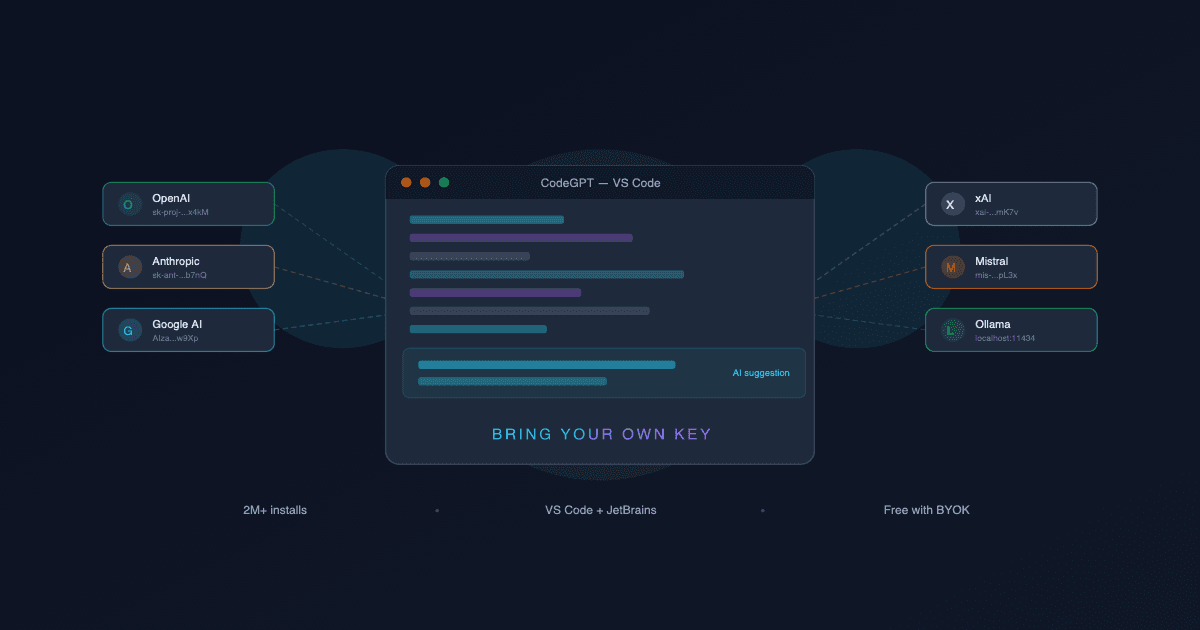
| Model support | Multiple providers (BYOK) | Multiple providers (BYOK) |
| Best for | Complex multi-file tasks | Quick questions and completions |
| Open source | Yes (Apache-2.0) | Yes (Apache-2.0) |
Pick Cline if you want an agent that can plan, execute, and iterate on multi-file tasks autonomously. Pick Continue.dev if you want a lighter-weight assistant for inline completions and quick code questions without the overhead of an agentic workflow.
Many developers actually use both: Continue.dev for everyday autocomplete and quick questions, Cline for larger tasks that need coordinated changes across files.
Pricing, Plans and Hidden Costs
Free tier
Cline itself is free to install as a VS Code extension. There is no base subscription to start testing workflows.
Paid usage reality
The main cost is model usage through your provider API keys (for example Anthropic or OpenAI usage). Your monthly total depends heavily on task depth and context size.
Practical cost pattern:
- Light personal use: usually manageable.
- Daily multi-step tasks in medium repos: moderate recurring spend.
- Heavy autonomous sessions with large contexts: costs can climb quickly.
Hidden cost to watch
The hidden cost is not just API spend. It is bad edits when the agent over-optimizes. The approval model reduces this risk, but you still need review discipline.
Pros and Cons
What we like
- It behaves like a real execution agent, not just autocomplete.
- Approval flow is simple and production-friendly.
- Strong for debugging loops that include code edits plus command output.
- Works well for VS Code-heavy developers who do not want editor migration.
What could be better
- Output quality varies by selected model and prompt clarity.
- Long sessions can become expensive with large codebases.
- Occasionally proposes broad refactors when a narrow fix is better.
How Cline Compares
Cline vs Cursor
Cursor is smoother if you want an integrated AI-first editor with polished inline assistance. Cline wins when you want explicit agent loops with stronger action transparency.
If you value visual polish and editor-level ergonomics, Cursor often feels easier. If you value inspectable execution steps and tighter approval control, Cline usually fits better.
Cline vs Claude Code
Claude Code is excellent for reasoning depth and complex architectural prompts, especially in terminal-first workflows. Cline is stronger when your center of gravity is VS Code and you want autonomous behavior in that exact environment.
The key question is interface preference plus governance style. Terminal-native developers often choose Claude Code. VS Code users who want guided autonomy often pick Cline.
Cline vs Roo Code
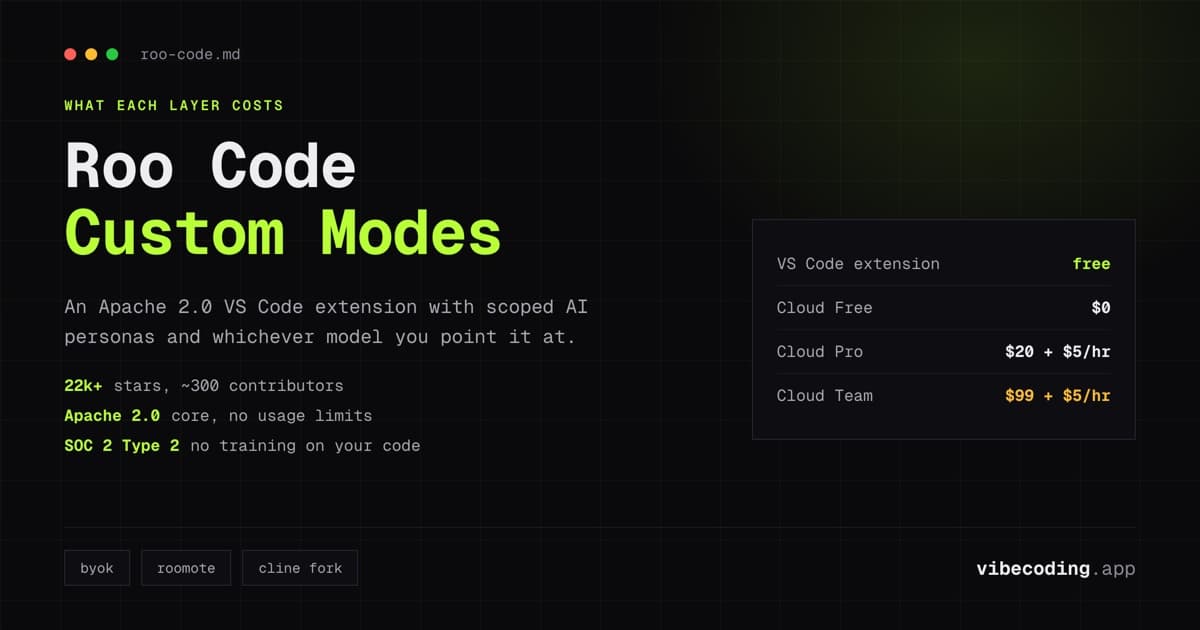
Roo Code gives broader model flexibility and an open-source-first posture. Cline generally feels more focused around execution flow and approval-driven guardrails.
If model choice and openness are top requirements, Roo Code is compelling. If you want a tighter default path for autonomous tasking, Cline often has the cleaner workflow.
For a broader comparison of all AI coding agents, see our best vibe coding tools guide.
Who Should Use Cline
Best for
- VS Code users who want agent execution without changing IDE.
- Developers handling repeated multi-file tasks and bugfix loops.
- Developers who want visible approvals for edits and commands.
Not ideal for
- Beginners still learning fundamentals who need slower scaffolding.
- Developers with strict budget ceilings on API-based tooling.
- Workflows where every change must be handcrafted line-by-line.
FAQ
What is Cline? Cline is an autonomous coding agent inside VS Code that can plan and execute multi-step engineering tasks, reading files, proposing edits, running terminal commands, and testing flows with browser automation.
Is Cline free? Cline itself is free to install as a VS Code extension. The main cost is model usage through your own provider API keys (Anthropic, OpenAI, etc.).
How does Cline compare to Cursor? Cursor is smoother with polished inline AI assistance. Cline wins when you want explicit agent loops with stronger action transparency and tighter approval control in VS Code.
What are the best Cline alternatives? Cursor offers a polished AI-first editor. Claude Code is excellent for terminal-first workflows. Roo Code provides broader model flexibility with an open-source-first approach.
Verdict
Cline is one of the better options in the current agentic coding category because it focuses on actual execution, not just suggestions. The tool is most useful when you ask it to do full workflows and then enforce approval checkpoints.
It is not magical and it will occasionally push changes too far. But with clear prompts and disciplined review, it can remove a lot of repetitive implementation work.
If you already operate in VS Code and want an autonomous assistant that stays controllable, Cline is easy to recommend.
Rating: 8.6/10
For broader context, compare this review with our OpenAI Codex review and Continue Dev review.
See also: OpenAI Codex App Review.
Community Buzz (Selected)

Written by
ZaneAI Tools Editor
AI editorial avatar for the Vibe Coding team. Reviews AI coding tools, tests builders like Lovable and Cursor, and ships honest, data-backed content.