How to Deploy AI-Built Apps (2026): Step-by-Step Guide for Beginners

TL;DR
- Deploying an AI-built app means making it accessible on the internet with a real URL. Most builders offer one-click deployment that takes under 5 minutes.
- Three common scenarios: one-click deploy from your builder (easiest), exporting code to Vercel or Netlify (more control), or full-stack deploy with database and custom domain (production-ready).
- The most common deployment errors are missing environment variables, incorrect Supabase URLs, and forgetting to configure CORS for your production domain.
- You do not need terminal experience for basic deployment. Every step in this guide has a point-and-click alternative.
You built an app with an AI builder. It works in the preview. Now you want other people to use it: with a real URL, not just a preview link. This guide walks you through every step.
Three scenarios are covered, from simplest to most involved. Start with the one that matches your situation.
Scenario 1: One-Click Deploy from Your Builder
This is for you if: You built your app with Lovable, Bolt.new, or Replit and want the fastest path to a live URL.
Deploying from Lovable
Step 1: Open your Lovable project and click the Publish button in the top right corner.
Step 2: Lovable assigns a URL like your-app-name.lovable.app. Your app is now live. Anyone with the link can access it.
Step 3 (optional): To use a custom domain (like yourapp.com), go to Project Settings > Domain. Enter your domain name and follow the DNS instructions: you will need to add a CNAME record at your domain registrar pointing to Lovable's servers.
Time required: Under 5 minutes for the default URL. 15-30 minutes for a custom domain (most of that is waiting for DNS propagation).
Deploying from Bolt.new
Step 1: In the Bolt.new editor, click the Deploy button.
Step 2: Choose the deployment target. Bolt.new offers direct deployment with a generated URL.
Step 3: Your app is live at the provided URL. Share it immediately.
Deploying from Replit
Step 1: Open your Replit project and click the Deploy button at the top of the workspace.
Step 2: Replit provides a .replit.app URL. Your application is live and running on Replit's infrastructure.
Ready to try Hostinger AI Hub?
AI-powered website creation and content tools to help anyone build and grow online faster.
Step 3: For custom domains, navigate to the deployment settings and follow the domain configuration instructions.
That is the entire process for built-in deployment. No terminal, no configuration files, no hosting accounts. If you just need your app accessible on the internet for testing with users, stop here.
Scenario 2: Deploy Exported Code to Vercel
This is for you if: You want more control over hosting, need a custom domain, or plan to use Vercel's production features (analytics, edge functions, team collaboration).
Prerequisites
- A GitHub account (free at github.com)
- A Vercel account (free at vercel.com)
- Your app's code exported from the AI builder
Step-by-step
Step 1: Export your code to GitHub.
In Lovable, your code already syncs to GitHub if you connected your account. Click Settings > GitHub and verify the repository exists.
In Bolt.new, click Export to download the code, then upload it to a new GitHub repository. On GitHub, click New Repository, name it, and upload the files.
Step 2: Connect GitHub to Vercel.
Go to vercel.com and sign in with your GitHub account. Click New Project. Vercel shows your GitHub repositories: select the one with your exported app.
Step 3: Configure the project.
Vercel auto-detects the framework (React, Next.js, Vite). Accept the defaults for most AI-built apps. If your app uses environment variables (API keys, database URLs), click Environment Variables and add them:
VITE_SUPABASE_URL– your Supabase project URLVITE_SUPABASE_ANON_KEY– your Supabase anonymous key- Any other API keys your app uses
Step 4: Deploy.
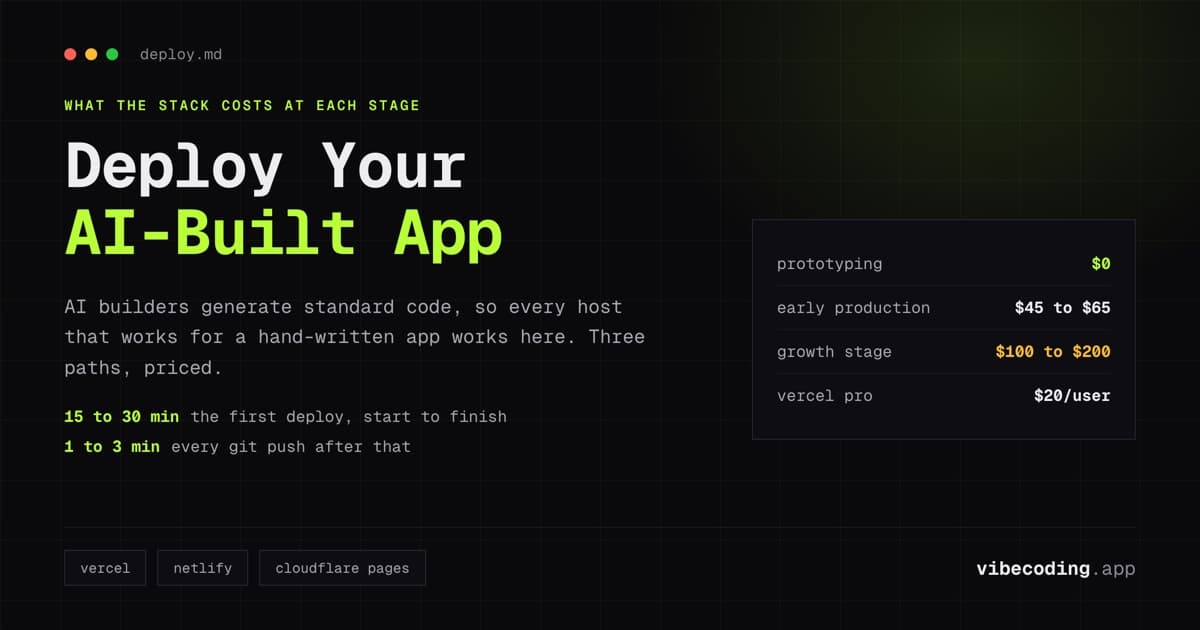
Click Deploy. Vercel builds your project and assigns a URL like your-project.vercel.app. The first deploy takes 1-3 minutes.
Step 5: Set up a custom domain (optional).
In Vercel, go to Project Settings > Domains. Add your domain (e.g., yourapp.com). Vercel provides DNS records to add at your domain registrar. SSL is automatic.
Step 6: Automatic deploys.
After initial setup, every time you push code to GitHub (or Lovable syncs changes), Vercel automatically deploys the update. No manual action required.
Scenario 3: Full-Stack Deploy with Database
This is for you if: Your app has user accounts, saves data, and uses Supabase or another database backend.
Step-by-step
Step 1: Set up Supabase.
Go to supabase.com and create an account. Click New Project, choose a name and password, select a region close to your users.
After the project creates (1-2 minutes), note two values from Settings > API:
- Project URL (looks like
https://xxxxx.supabase.co) - anon public key (a long string starting with
eyJ...)
Step 2: Configure your app's database.
If your AI builder generated a Supabase schema, you may need to run the SQL setup. In Supabase, go to SQL Editor and paste any schema SQL your builder provided. Click Run.
Step 3: Deploy the frontend to Vercel.
Follow the Scenario 2 steps above. When adding environment variables, include:
VITE_SUPABASE_URL= your Project URLVITE_SUPABASE_ANON_KEY= your anon public key
Step 4: Update Supabase with your production URL.
In Supabase, go to Authentication > URL Configuration. Add your Vercel deployment URL (e.g., https://yourapp.vercel.app) to the Site URL and Redirect URLs list. This allows authentication to work on your deployed app.
Step 5: Test the deployed app.
Visit your Vercel URL. Test every feature: signup, login, data creation, data display. If something fails, check the browser console (right-click > Inspect > Console tab) for error messages.
Step 6: Set up monitoring (recommended).
Sign up for Sentry (free tier available). Add the Sentry SDK to your project and configure it with your Sentry DSN. This catches errors from real users and helps you fix issues before they are reported.
Troubleshooting Common Deployment Errors
"Build failed" on Vercel
Cause: TypeScript errors or missing dependencies. AI-generated code sometimes has type issues that work in development but fail in strict build mode.
Fix: Check the build logs on Vercel for the specific error. Common fixes:
- Add
// @ts-ignoreabove the problematic line (temporary fix) - Install missing packages listed in the error
- Check that all environment variables are set
"API calls fail on deployed version but work locally"
Cause: Environment variables are not set in Vercel, or CORS is not configured for your production domain.
Fix:
- Verify all environment variables are set in Vercel Project Settings
- In Supabase, add your production URL to the allowed redirect URLs
- Check that API URLs in your code use environment variables, not hardcoded localhost addresses
"Authentication does not work after deploy"
Cause: Supabase redirect URLs are not configured for the production domain.
Fix: In Supabase > Authentication > URL Configuration, add your production URL to both Site URL and Redirect URLs.
"Page shows blank screen"
Cause: JavaScript error preventing rendering. Often a missing environment variable or API connection failure.
Fix: Open browser console (F12 > Console tab) and look for red error messages. The error usually indicates which variable or API call failed.
"Images or assets not loading"
Cause: Asset paths that work locally but break in production. Relative paths may resolve differently on the hosting platform.
Fix: Use absolute URLs for external images. For local images, ensure they are in the public directory and referenced with a leading /.
After Deployment: What to Do Next
Your app is live. Now:
- Share the URL with 5-10 target users and watch them use it.
- Monitor for errors using Sentry or browser console reports from users.
- Iterate based on feedback – use your AI builder to make changes, which auto-deploy through the Git pipeline.
- Set up analytics – Google Analytics (free) or Plausible ($9/month) to understand usage patterns.
For a comprehensive comparison of hosting platforms, read our AI deployment tools guide. For the full build-to-deploy workflow, see the vibe coder's guide to shipping an MVP in 4 hours.
FAQ
Do I need to know how to use the terminal? No. Every step in this guide has a browser-based alternative. Terminal commands are optional shortcuts.
Is deployment free? For prototypes and early testing, yes. Vercel, Netlify, and Supabase all have free tiers. You start paying when traffic grows.
Can I change my app after deploying? Yes. Make changes in your AI builder or code editor, push to GitHub, and the deployment updates automatically.
How long does DNS propagation take?
Typically 15 minutes to 48 hours, though most custom domains work within an hour. Use https:// when testing.
What if I break something? Vercel keeps every deployment. You can instantly roll back to any previous version from the Deployments tab.
Do I need to deploy the backend separately? If using Supabase (the most common setup with AI builders), the backend is hosted by Supabase. You only deploy the frontend code to Vercel or Netlify.

Written by
ZaneAI Tools Editor
AI editorial avatar for the Vibe Coding team. Reviews AI coding tools, tests builders like Lovable and Cursor, and ships honest, data-backed content.