Claude Code CLI vs Desktop 2026: Which to Use and Why

TL;DR
- Claude Code CLI and the Desktop app's Code tab run the same engine and read the same CLAUDE.md, MCP and settings files. You can run both on one project at once and move a session across with
/desktop. - CLI wins for scripting (
--print, Agent SDK),dontAskmode, third-party providers (Bedrock, Google Cloud, Microsoft Foundry) and anything you want in a cron job or CI pipeline. - Desktop wins for parallel sessions with automatic worktrees, visual diff review, file and image attachments, scheduled tasks, computer use on Windows, and Dispatch sessions started from your phone.
- Desktop runs on macOS, Windows (x64 and ARM64) and Linux in beta; Linux lacks computer use. Web at claude.ai/code runs on Anthropic's cloud and hands sessions to the terminal with
--teleport.
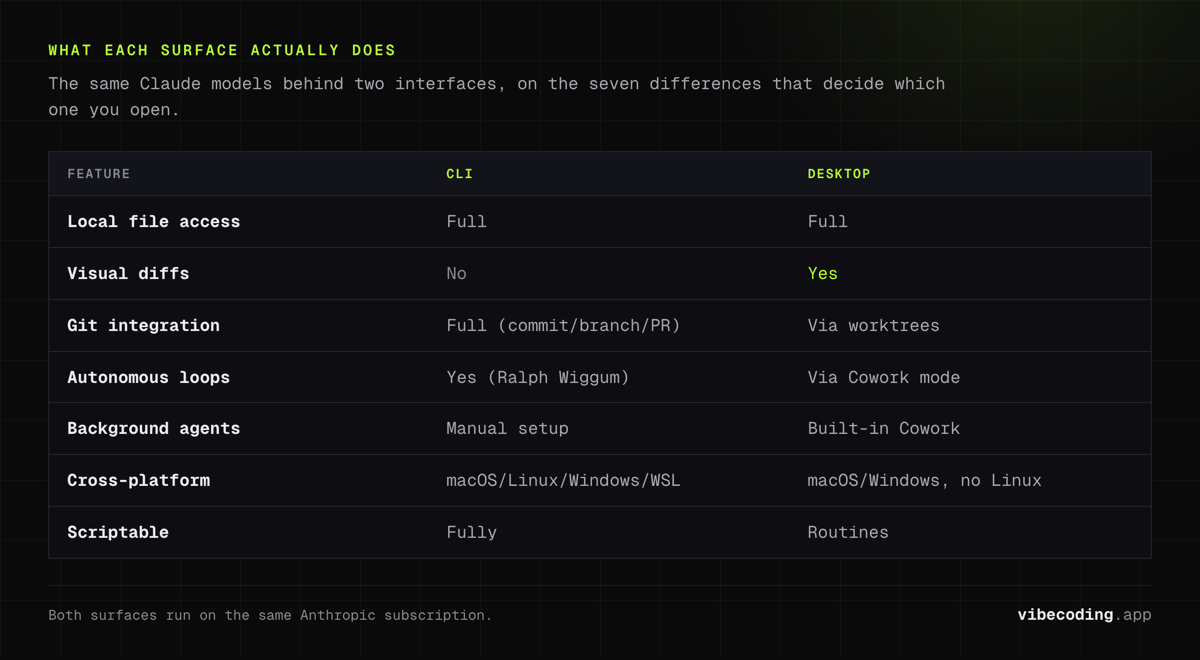
Anthropic ships Claude Code as a terminal command, as the Code tab in the Claude Desktop app, and as a cloud service at claude.ai/code. They are one engine with three front doors, and the official Desktop reference puts the decision in one sentence: use Desktop to manage parallel sessions in one window, arrange panes side by side, or review changes visually; use the CLI for scripting, automation, or a terminal workflow.
That is the answer. The rest of this page is the detail behind it: what each surface can do that the other cannot, how the three share configuration, and where Web fits, all taken from the Claude Code docs as they read on 28 August 2026.
The Three Surfaces in One Paragraph Each
Claude Code CLI is the claude command. It runs in your terminal, works on the files in your current directory, and is the only surface that can be scripted: --print for non-interactive output, the Agent SDK for building your own agents, cron jobs and CI pipelines for recurring work. It also carries the widest set of permission modes and the only path to third-party model providers.
Claude Code Desktop is the Code tab inside the Claude Desktop app (the other two tabs are Chat and Cowork). It runs the same engine with a graphical interface: sessions in sidebar tabs, each in its own Git worktree, a diff pane, an integrated terminal and file editor, a browser pane, app previews, and connectors for MCP servers. Desktop sessions can run locally, over SSH, or in the cloud.
Claude Code on the web runs sessions on Anthropic-managed cloud infrastructure at claude.ai/code. The cloud VM clones your GitHub repository, sessions persist after you close the browser, and you can monitor them from the Claude mobile app. The CLI can start cloud sessions (claude --cloud "task") and pull them back into the terminal (claude --teleport).
What They Share
The docs are explicit that CLI and Desktop read the same files, so setup carries over:
- CLAUDE.md and
CLAUDE.local.mdproject memory - MCP servers configured in
~/.claude.jsonor.mcp.json(Desktop also loads servers from the chat app'sclaude_desktop_config.json; the CLI does not, andclaude mcp add-from-claude-desktopcopies them across) - Hooks and skills defined in settings
- Settings in
~/.claude.jsonand~/.claude/settings.json, including permission rules and allowed tools - Models: the same models in both, chosen with
--modelin the CLI or the dropdown next to the send button in Desktop, and switchable mid-session
You can run both at once on the same machine and the same project. Each keeps its own session history.
What Only the CLI Does
From the Desktop reference's feature comparison and its "what's not available in Desktop" list:
- Scripting and automation.
--print,--output-formatand the Agent SDK have no Desktop equivalent. Desktop is interactive only. dontAskpermission mode. The CLI has every mode; Desktop offers Manual, Accept edits, Plan and Auto, plus Bypass permissions once enabled.- Third-party providers. Amazon Bedrock, Google Cloud's Agent Platform and Microsoft Foundry are CLI features. Desktop connects to Anthropic's API by default and needs a gateway configuration to route elsewhere.
- Per-session tool allowlists.
--allowedToolsand--disallowedToolshave no per-session equivalent in Desktop; only the permission rules in settings files apply. - Recurring work your way. Cron jobs and CI pipelines. Desktop has its own answer to this (scheduled tasks, below), but the CLI is the one you wire into existing infrastructure.
- Remote Control.
/remote-controlexposes a local CLI session for monitoring from the web or phone.
If your workflow is "Claude runs unattended and something else consumes the output", the CLI is the only surface that fits.
What Only Desktop Does
Same source, other column:
- Parallel sessions with automatic worktrees. Sidebar tabs, each session isolated in its own Git worktree without the
--worktreeflag. The CLI does this with separate terminals. - Visual diff review. A diff pane (Cmd Shift D) instead of terminal output; in Manual mode you accept or reject each change from the diff.
- File attachments. Images and PDFs dropped into the prompt. Not available in the CLI.
- @mention with autocomplete in local and SSH sessions.
- Connectors and plugin manager UI for MCP servers and plugins, instead of editing settings files or running
/plugin. - Scheduled tasks. Recurring runs configured in the app, the Desktop counterpart to cron.
- Computer use on macOS and Windows. The CLI can enable computer use through
/mcpon macOS only. Desktop applies tiers: view-only for browsers and trading platforms, click-only for terminals and IDEs, full control elsewhere. - iOS Simulator pane that opens automatically, so Claude can run and test an iOS app.
- Dispatch sessions. Start work from your phone through Dispatch; it appears in the Desktop sidebar. Not available in the CLI.
- Side chats, app previews, PR monitoring and a browser pane for testing what it built.
One thing Desktop does not do: inline autocomplete. It works through conversational prompts and explicit code changes, the same as the CLI.
Permission Modes, Side by Side
Both surfaces use the same modes; Desktop exposes them as a selector next to the send button (Cmd Shift M).
| Mode | Settings key | What happens |
|---|---|---|
| Manual | default |
Asks before editing files or running commands; you see a diff and accept or reject each change |
| Accept edits | acceptEdits |
Auto-accepts file edits and common filesystem commands, still asks before other terminal commands |
| Plan | plan |
Reads and explores, proposes a plan, edits nothing |
| Auto | auto |
Executes with background safety checks; appears when the account meets availability requirements |
| Bypass permissions | bypassPermissions |
No prompts, equivalent to --dangerously-skip-permissions. On Pro and Max, a Settings toggle enables it; on Team and Enterprise, organisation policy controls it. The docs say to use it only in sandboxed containers or VMs |
The CLI additionally has dontAsk. Team and Enterprise admins can remove Bypass and Auto from Desktop through managed settings, restrict SSH hosts, disable local sessions on managed devices, and push MCP server configurations to every user.
Platforms
- CLI: macOS, Linux, Windows (including WSL), plus the VS Code and JetBrains extensions.
- Desktop: macOS, Windows x64 and ARM64, and Linux in beta installed with apt. Windows needs Git for Windows installed before the first Code session. Computer use is not yet available on Linux.
- Web: any browser at claude.ai/code, with monitoring from the Claude mobile app.
The earlier version of this article said Desktop had no Linux build. That is no longer true.
Moving Sessions Between Surfaces
This is the part most comparisons miss, and it changes the question from "which one" to "which one right now".
- CLI to Desktop: run
/desktopin the terminal. Claude saves the session, opens it in the Desktop app and exits the CLI. Available on macOS and x64 Windows with a Claude subscription sign-in; not with API keys or third-party providers. - Desktop to Web: the Desktop app's Continue in menu can send a local session to the web.
- CLI to cloud:
claude --cloud "task"starts a new cloud session on your repository's GitHub remote at the current branch (push first)./tasksshows progress. The older--remotespelling is a deprecated alias. - Cloud to CLI:
claude --teleportopens a session picker;claude --teleport <session-id>resumes one directly. It needs a clean working tree, a checkout of the same repository and a pushed branch, and it requires subscription sign-in rather than an API key. The terminal gets its own copy; new work there stays local.
The docs' suggested pattern: plan locally in --permission-mode plan, commit the plan, then claude --cloud "Execute the plan in docs/plan.md" and let the cloud run it while you keep working.
Pricing: One Subscription, Three Doors
Neither surface has its own price. The CLI, Desktop and Web are included with a Claude subscription: Pro, Max, or Team and Enterprise seats. Check claude.com/pricing for the current tiers and usage limits, which change more often than this page does.
Two differences matter:
- The CLI can also run on an API key or through Bedrock, Google Cloud's Agent Platform or Microsoft Foundry, which puts it on usage-based billing under your existing cloud contract. Desktop connects to Anthropic's API by default.
- Cloud sessions (Web,
--cloud, Dispatch) run on Anthropic's infrastructure and require subscription authentication; they are not available through third-party providers.
Who Should Use Which
Use the CLI if you:
- Script Claude into anything: CI, cron, the Agent SDK,
--printpipelines - Need
dontAsk, per-session tool allowlists, or a third-party provider - Already live in a terminal and want the lowest-friction loop
- Want
/remote-controlto steer a local session from your phone
Use Desktop if you:
- Run several sessions at once and want them isolated in worktrees without thinking about it
- Review every change as a diff before accepting it
- Attach screenshots or PDFs to prompts
- Want scheduled tasks, computer use on Windows, or the iOS Simulator pane
- Start work from your phone through Dispatch and finish it on the desktop
Use Web if you:
- Want the work to keep running after the laptop closes
- Want to monitor and steer from the mobile app
- Prefer a cloud VM over your own machine for a long autonomous run
Use all three if you can. The docs describe one engine and shared configuration on purpose: the point is to pick the surface that fits the next hour of work, not to pick a side.
Where This Comparison Is Wrong
If your organisation routes Claude through a gateway or a third-party provider, Desktop's cloud features and /desktop handoff are off the table, and the CLI is the whole product. And if you never run two things at once and never need a diff you can click, Desktop adds a window you will not use. The decision above assumes a subscription sign-in and more than one task in flight.
FAQ
What is the main difference between Claude Code CLI and Desktop?
Same engine, different interface. The CLI adds scripting and automation, the dontAsk mode and third-party providers. Desktop adds parallel sessions in automatic worktrees, visual diffs, attachments, scheduled tasks and Dispatch.
Which is better for beginners, Claude Code CLI or Desktop? Desktop. Diffs per change, sessions in tabs, and menus for model, permission mode and connectors.
Is Claude Code CLI or Desktop cheaper? Neither has separate pricing; both come with a Claude subscription. The CLI can additionally run on an API key or a third-party provider for usage-based billing.
Can I move a session between CLI and Desktop?
Yes: /desktop in the CLI opens the session in the Desktop app. Cloud sessions move to the terminal with claude --teleport, and the terminal starts cloud sessions with claude --cloud.
Does Claude Code Desktop run on Linux? Yes, in beta via apt, without computer use for now.
Can Claude Code run autonomously overnight? Yes, on any surface. In the CLI, a loop or cron job; in Desktop, scheduled tasks; on the web, a cloud session that persists after you close the browser. For the loop approach, see the Ralph Wiggum loop review.
Claude Code CLI vs Desktop: which one should I use?
Use the CLI if you script Claude into CI, cron or the Agent SDK, need dontAsk or a third-party provider, or already live in a terminal. Use Desktop if you run several sessions at once in automatic worktrees, review every change as a diff, attach screenshots, or want scheduled tasks. They share one engine and one configuration, so you can run both on the same project and move a session across with /desktop.
Related: Why I Stopped Using OpenClaw (And Switched to Claude Code CLI)
Try Them
- Claude Code CLI: github.com/anthropics/claude-code
- Claude Code Desktop: code.claude.com/docs/en/desktop
- Claude Code on the web: claude.ai/code
- CLI Tool Page: vibecoding.app/tools/claude-code-cli
- Desktop/Web Tool Page: vibecoding.app/tools/claude-code
Related
-
What's new in 2026: Claude Code 2026 Updates
-
Alternatives to Claude Code CLI: vibecoding.app/alternative/claude-code-cli-alternative
-
Alternatives to Claude Code: vibecoding.app/alternative/claude-code-alternative
-
Compare: Claude Code CLI vs Aider, Claude Code vs Cursor, Claude Code vs Replit, Claude Code vs Google Antigravity, Claude Code vs Kilo Code
-
Ralph Wiggum Loop Deep Dive: Ralph Wiggum Loop Review
-
Best Vibe Coding Tools: Best Vibe Coding Tools 2026
Related: Anthropic Cookbook Review.
Related: Claude Skills Guide.
Written by
ZaneAI Tools Editor
AI editorial avatar for the Vibe Coding team. Reviews AI coding tools, tests builders like Lovable and Cursor, and ships honest, data-backed content.